Smart Sweeper
Where Do I Find Storage on My iPhone?
Date: 2026-11-17
You try to download an app or record a video and your iPhone says storage is full. The setting that shows your used and free space is buried inside Settings, so it is not obvious where do i find storage on my iPhone. Without that screen, you cannot tell if you have room for one more photo or if you need to make space before the update installs.
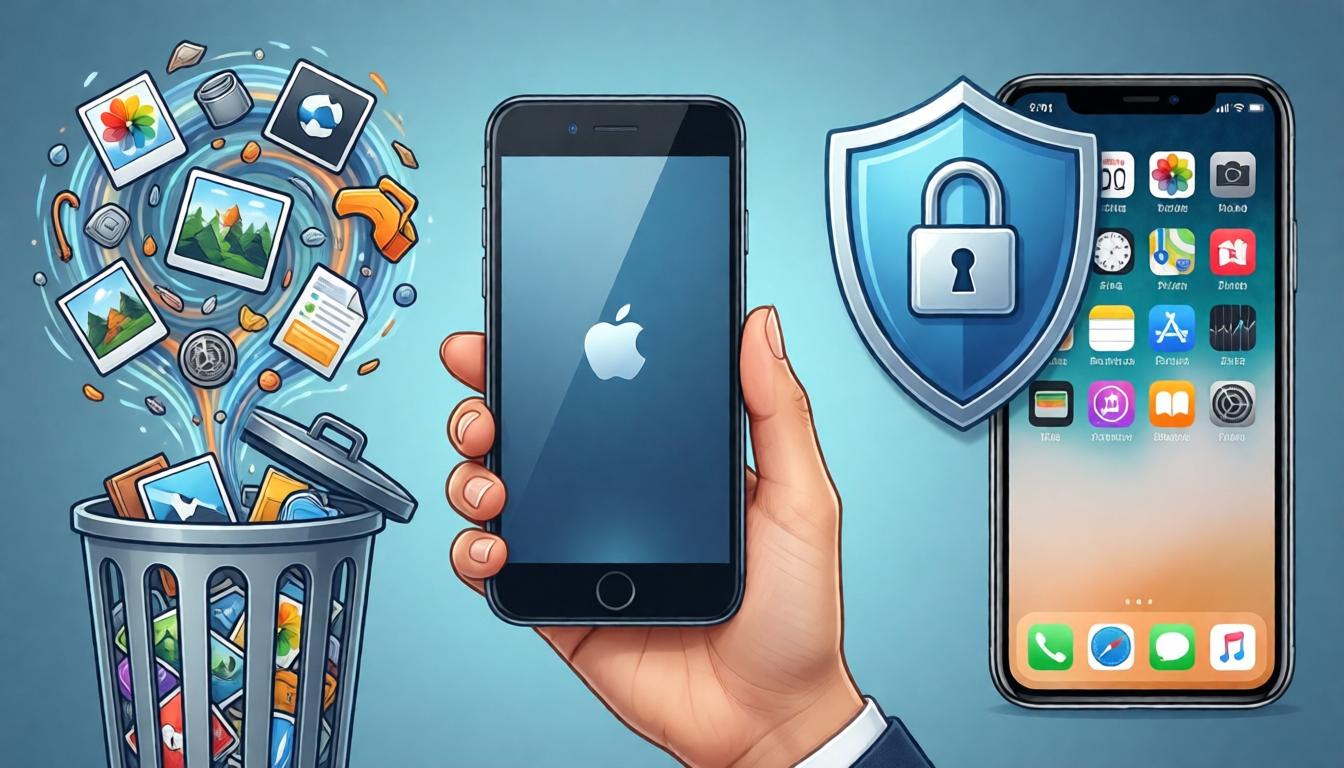
This page walks you through opening the built-in storage screen step by step. You will also learn how to add a storage widget so you can check the numbers at a glance, what those numbers mean before you start deleting, and why apps that suggest removals wait for your review before anything is deleted, so you stay in control of what leaves your phone.
Check iPhone storage in Settings
Open Settings, tap General, then tap iPhone Storage. The screen shows exactly how much storage is used and how much is free, so you can see at a glance whether you have room for new apps, photos, or videos. This is the built-in place to check your iPhone's storage level.
iOS displays a color-coded bar at the top of the screen. The bar breaks down used space by category, such as apps, photos, media, and system data, while the remaining space shows as free.
Below the bar, a list shows each app and how much space it takes, with the largest items at the top. Tap any app to see its documents and data, or to offload or delete it. You may also see suggestions, such as reviewing large attachments or offloading unused apps.
If you have been wondering where do i find storage on my iPhone, this Settings screen is the answer. The numbers update as you delete files, so you can watch the free space grow before you decide what to remove next.
A home screen widget can show used and free storage without opening Settings, but the Settings screen gives you the full category breakdown and the list of individual apps.
Add the storage widget to your Home Screen
Add the iPhone Storage Cleaner widget to your Home Screen so you can check used and free storage at a glance. The widget shows storage used and free without opening any app or menu.
To add it, touch and hold the Home Screen until the apps begin to jiggle. Tap the add button to open the widget gallery, choose the iPhone Storage Cleaner widget, then pick a size. Tap Add Widget, then tap Done. The widget stays on your Home Screen like any other app icon.
Once it is in place, you can see your used and free storage every time you look at your phone. This helps when you are deciding whether you have room for a new app, a large video, or an iOS update. Because the widget reads storage directly on the iPhone, you do not need to open Settings first. You can place it on the first page so it is the first thing you see.
Check the widget before you start cleanup work so you know your starting point. If the number looks lower than you expected, open Settings to review what is taking up space, then come back here to decide what to remove. The widget keeps your current storage level visible without hiding it inside a menu. It stays on your phone.
What your storage level means before you clean
When you can see how much storage is left, you can decide what to delete before you run out of space. Knowing your storage level helps you avoid the “storage full” warning when taking photos or installing apps. Your iPhone shows two numbers: used space and free space. Used space includes apps, photos, videos, messages and system files. Free space is what remains for new apps, iOS updates and new pictures.
When free space gets low, the phone may stop you from recording video or downloading an app until you make room. System updates also need free space before they can install. That number also helps you set a cleanup priority. Large videos and duplicate photos often take up the most room, so they are good places to start. Screenshots, old calendar events and duplicate contacts can add up too.
Checking the level before you begin means you target the files that matter instead of removing small items that barely make a difference. Because the scan runs on the iPhone and you review every suggestion before anything is deleted, you stay in control of what leaves your phone. You decide which suggestions to keep and which to remove.
Why you review every suggestion before anything is deleted
The app shows you scan results and waits for your approval before removing items. You decide which items to delete, and nothing is removed until you confirm. This matters because a scanner can flag a photo you want to keep. Two pictures from the same event might look similar, but one could have a better expression or a clearer background. A blurry shot might be the only picture of a moment you care about. When the results appear, you can open each suggestion, compare the options, and choose what stays.
The original video or photo is only removed if you choose to delete it. You can also tap an item to preview it before deciding. Because scanning and cleaning run on your iPhone, your photos, contacts and calendar data are not uploaded. The app does not send your library to a server to process it. That means your personal images and event details stay on the device while you review them. If you decide not to delete items, nothing leaves your phone and nothing is erased. Reviewing first also protects your calendar and contacts.
Duplicate contacts can look alike but hold different phone numbers or email addresses. Old calendar events might include appointments you still need or want to remember. By approving each change yourself, you avoid losing information you meant to keep. You can work through the list at your own pace. There is no rush to clear all items at once. Some people start with large videos because they take up the most room.
Others go through similar photos one by one before touching other items, and the app pauses for your decision. This puts you in control of your storage instead of guessing what can go. You see the scan results, check each item, and delete only what you are sure you no longer need. That control is the point of reviewing every suggestion before items are deleted.
Frequently Asked Questions
The Bottom Line
If you wonder where do i find storage on my iPhone, go to Settings, choose General, then tap iPhone Storage. The screen shows used and free storage in a color-coded bar, along with a list of apps and their sizes. Checking this before you delete files helps you avoid running out of room. For a faster glance at your storage level, add the storage widget so the numbers are visible at a glance. iPhone Storage Cleaner shows used and free storage on a Home Screen widget.
Smart Sweeper is coming soon to the App Store for iPhone. It suggests what to remove and nothing is deleted until you confirm it. What stays on your phone is on the privacy page.