Smart Sweeper
Is clean up app safe for iPhone? Privacy Explained
Date: 2026-11-20
Many iPhone users worry that a storage‑cleaning app might send their photos, contacts or calendar events to a remote server. The fear of personal media being uploaded can make even the most useful cleaning tools feel risky.
This article answers the question in the reader’s own words, is iPhone Storage Cleaner safe for iPhone, and explains why that concern matters.
We’ll look at how on‑device scanning works, what safeguards keep your data where it belongs, and how the app’s approach differs from built‑in iOS options.
Your privacy stays in your hands.
By the end you’ll know whether you can trust a cleaner to free space without compromising privacy.
Why On‑Device Scanning Matters for Your Privacy
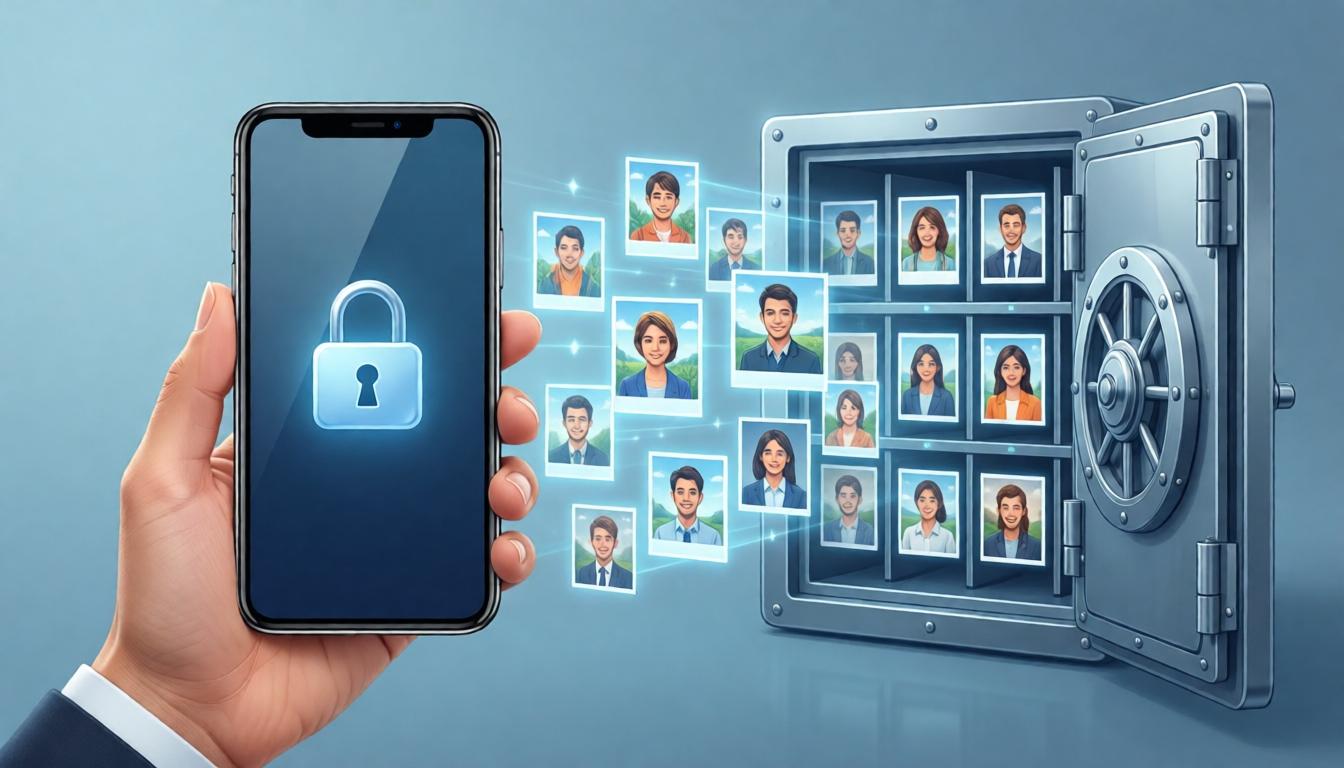
All scans happen directly on your iPhone, never in the cloud. Your personal media stays private because the app processes photos, videos, contacts and calendar entries only on the device.
By keeping every analysis on‑device, iPhone Storage Cleaner removes any need to send files to external servers, eliminating the main path for accidental exposure. iOS isolates each app in its own sandbox, so the cleaner can read only the media you grant access to and cannot reach other apps or system areas without permission. Because the scan runs locally, no network traffic can leak images or contact details, giving you full control over what is ultimately removed.
So if you wonder is clean up app safe for iPhone, the answer is that on‑device processing keeps your data on the phone unless you deliberately share it yourself. You retain full oversight of each suggestion before any item is deleted.
How the App Keeps Your Data Secure While Cleaning
The app processes duplicate detection, video compression and contact merging locally. No external servers touch your files, so photos, videos, contacts and calendar events stay on the iPhone. All work occurs inside the iOS sandbox under Apple’s privacy model. When a scan starts, the app analyzes media and calendar data entirely on the device, then shows a list of suggestions that you must manually approve before anything is deleted. Video compression follows the same flow: the original remains on the phone while a smaller HEVC copy is created locally. The original is only removed if you choose to replace it, keeping control in your hands.
Private photos and videos can be moved to a Face ID‑protected vault that encrypts the content on the device and never syncs to iCloud or any server. Battery Care tips are generated from the phone’s own battery information, not from third‑party sources. All these steps happen without sending personal content off the iPhone, confirming that iPhone Storage Cleaner keeps your data on‑device and answering the question of whether a clean‑up app is safe for iPhone.
Comparing Built‑In iOS Tools vs. a Dedicated Cleaner
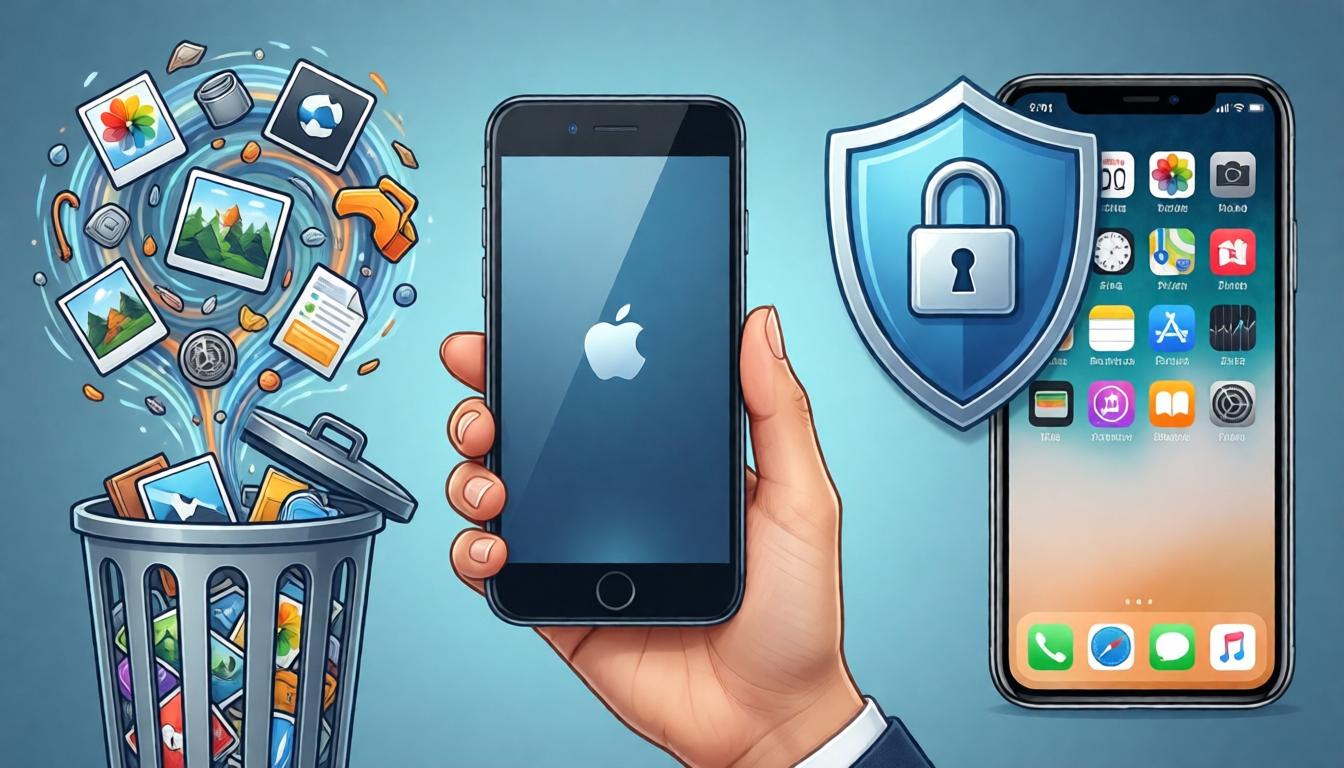
iOS offers basic storage insights but lacks deep duplicate detection and encryption. The built‑in Settings > General > iPhone Storage screen shows how much space each app uses, yet it does not identify duplicate photos, blurry shots, or large videos that could be compressed, nor does it provide a secure vault for private media. A dedicated storage cleaner fills those gaps by scanning the photo library for duplicates and similar images, highlighting blurry or low‑quality shots, and offering optional HEVC compression for large videos while keeping the original safe until you decide to replace it.
It also creates a Face ID‑protected encrypted vault for private photos and videos, a feature not available in iOS alone. Because all processing happens on the device, the app respects the question is clean up app safe for iPhone by never uploading contacts, calendar events, or media to external servers. In short, the app extends the native storage overview with advanced detection, compression, and encryption that iOS does not provide on its own.
Quick Checklist Before You Start Cleaning
Back up important contacts and review the encryption vault settings. Simple steps keep data safe. You may wonder: is clean up app safe for iPhone? Yes, because the app performs every scan and compression locally on your iPhone, never sending photos, contacts, or videos elsewhere. The checklist below shows the safeguards you can rely on. 1. Back up contacts, use iCloud or a computer backup so you have a copy before any merge or removal.
Check the private vault, open the vault settings in iPhone Storage Cleaner and confirm Face ID protection is enabled. The vault keeps selected photos and videos encrypted on the device. 3. Run the first scan, launch the scan in iPhone Storage Cleaner; because the scan runs on‑device you can review every suggestion before anything is removed.
Inspect video compression results, after compression the app saves a smaller HEVC copy and leaves the original untouched until you confirm deletion. 5. Verify storage after cleaning, look at Home screen widget to see the updated free space and confirm the expected items were cleared. Following this checklist gives confidence that cleaning process is safe and that no personal data leaves your iPhone.
The Bottom Line
The core concern is whether a clean‑up app is safe for the iPhone, and the answer is yes because all scanning happens on the device. It examines photos, videos, address‑book entries and calendar items locally and never uploads any of that data. The app then lets you review suggestions and delete unwanted items, keeping your personal information private. You decide what stays and what goes, and nothing is removed without your approval.
Smart Sweeper is coming soon to the App Store for iPhone. It suggests what to remove and nothing is deleted until you confirm it. What stays on your phone is on the privacy page.