Smart Sweeper
How to Recover Lost Photos with an iPhone Photo Vault App

Date: 2026-11-21
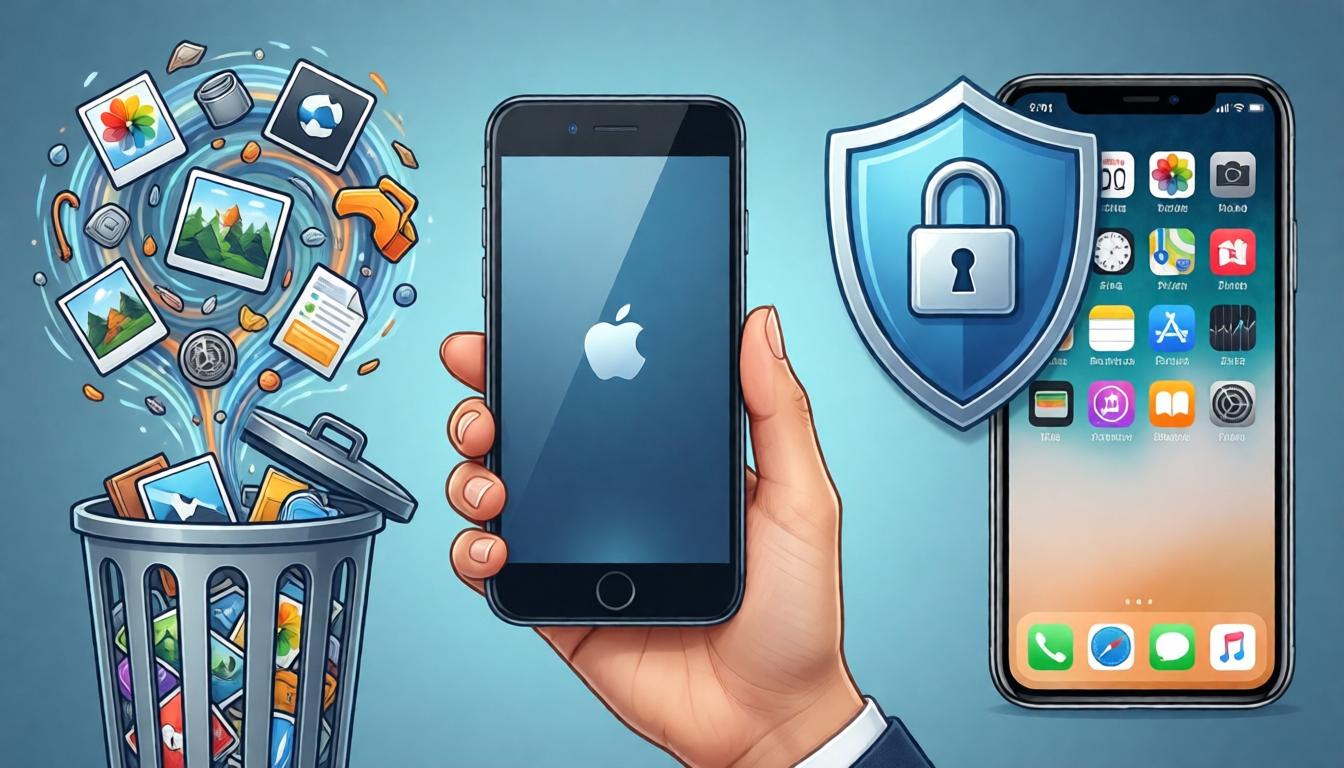
When the iPhone storage warning flashes, it can feel like your hidden vault photos have vanished forever. The anxiety of believing treasured memories are gone is common for anyone using a secure photo vault on an iPhone. This article addresses that exact frustration and walks you through retrieving those images without risk.
In the following sections you’ll learn how to access the vault, locate the hidden files, restore them to your main library, and share them safely. You’ll also see when the built‑in Hidden Album falls short and why the dedicated vault provides an extra layer of protection.
What the Private Photo Vault Is and How It Keeps Your Media Safe
The Private Vault is an encrypted, Face ID‑protected space inside the iPhone photo vault app that stores photos and videos offline. It creates a separate compartment on the device, so your private media never mixes with the main photo library while staying fully on the iPhone. Because the vault lives locally and uses on‑device encryption, the files remain inaccessible without authenticating with Face ID.
The solution isolates the media, shielding it from other apps and from accidental deletion during routine scans. All processing, including the encryption, runs on the iPhone itself, ensuring that no photos, videos, contacts, or calendar data leave the device. This design gives you a secure pocket for sensitive images while keeping the rest of your library tidy.
Step‑by‑Step: Restoring Photos from the Private Vault
Select the photos you want, tap the restore button, and choose a destination album in the Photos app. The restored images reappear in your regular library exactly as they were before hiding. Inside the vault, tap the Select mode and tap each thumbnail you wish to recover. A check‑mark appears on each chosen item, giving you visual confirmation of your selection. When you have marked all desired media, press the Restore option that appears at the bottom of the screen.
A small window opens, listing your existing albums; pick the album where the photos should return, such as Recents or a custom album you created. Confirm the choice, and the app moves a copy of each selected file back into that album. Because you approve each restoration, only the selected photos are moved back into your main photo library. After the process finishes, open the Photos app and verify that the images are present in the chosen album, ready to view or share as usual.
Exporting or Sharing Recovered Media Safely
After restoration you can share or export the files directly from the Photos app, just like any normal picture, even when using an iPhone photo vault app. The restored image appears in your regular library, so open the Photos app, locate the picture, and tap the Share icon that looks like a square with an arrow pointing up. From the iOS Share sheet you can choose a destination such as Save to Files, Messages, Mail, AirDrop, or any social‑media app that appears in the list.
Each option creates a copy of the image outside the encrypted vault, and the vault itself places no limits on how you use the recovered file. Because all scanning, cleaning and vault operations stay on the iPhone and never upload your media, sharing works exactly as it does for any other photo on the device. If you prefer a permanent local copy separate from the Photos library, select Save to Files and pick a folder in iCloud Drive or On My iPhone; the file will remain on the device until you delete it.
Frequently Asked Questions
The Bottom Line
If hidden vault photos seem lost because of a storage warning, you can easily unlock the private vault, select the desired items, and restore them to the regular photo library with a few taps. The restored media can then be shared or exported safely using iOS’s built‑in sharing options. iPhone Storage Cleaner stores private photos and videos in an encrypted Face ID‑protected vault on the iPhone.
Smart Sweeper is coming soon to the App Store for iPhone. It suggests what to remove and nothing is deleted until you confirm it. What stays on your phone is on the privacy page.