Smart Sweeper
What Takes Up the Most Storage on an iPhone
Date: 2026-11-16
Your iPhone says storage is full and you cannot take new photos. You know pictures and videos are using space, but you cannot tell which ones are safe to delete. What takes up the most storage on an iPhone is not always obvious from the home screen. The phone says it is full, but it does not point to the exact files eating the most room or explain how much each category uses.
This page explains which iPhone content types typically use the most space. It covers photos, videos, apps, messages and system data, then shows where iOS storage settings stop and targeted cleanup helps. You will learn why duplicate and blurry images quietly fill your library. It also explains what steps you can take instead when you cannot add more storage to an iPhone.
What iPhone storage settings show you
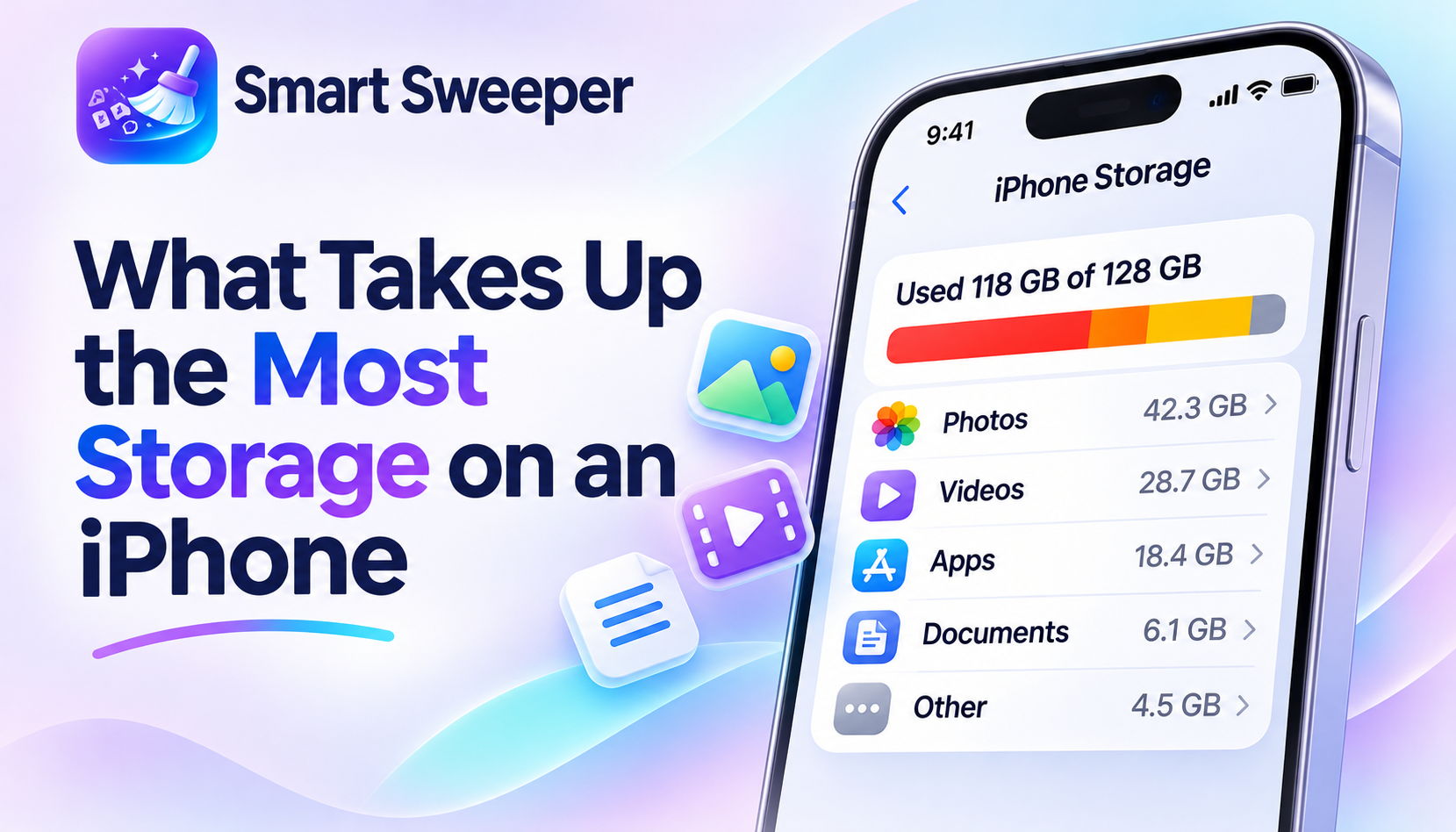
If you want to know what takes up the most storage on an iPhone, open Settings and look at the storage breakdown. iOS shows how much space photos, apps, messages and system data are using, but it does not point out which individual files are safe to delete.
That category view is useful for spotting the biggest space users, not for cleaning them up. You can see that photos and videos are occupying a large amount of space, for example, but the settings screen will not show which duplicate shots, blurry images, screenshots, Live Photos, selfies or large videos are candidates for removal. It also will not tell you which old calendar events or duplicate contacts are taking space, because it sorts by content type rather than by file.
A dedicated scanner fills that gap by looking through the photo library for duplicate and similar photos, screenshots, blurry photos, Live Photos, selfies and large videos, then suggesting what to remove. You review every suggestion before anything is deleted, so you stay in control of what leaves the library.
Photos, videos, apps and messages: what typically uses the most iPhone storage
Photos and videos usually occupy the largest share of iPhone storage, especially when duplicates, screenshots and long clips accumulate. A few minutes of high-resolution video or a steady stream of screenshots can use more space than several apps combined.
For many people, media is what takes up the most storage on an iPhone. Camera photos, saved images from chats, and long video clips fill the library fastest. Apps and plain text messages usually take less space, though messages with many large attachments can grow over time. Even short clips recorded in high resolution add up quickly.
Clearing redundant media frees more space than removing a few apps or messages. Deleting one or two apps might recover only a few hundred megabytes, while clearing duplicate screenshots, blurry shots and old video clips can recover several gigabytes. Keeping one best shot from a group of similar photos removes extras without losing the memory.
This makes removing unneeded media one of the fastest ways to make room for new photos and videos on an iPhone running low on space. It also avoids the guesswork of deleting apps you still use just to free up a little storage.
Blurry images and duplicate photos quietly fill your library
Blurry photos, near-duplicates and screenshots often take up room without you noticing. Several copies of the same image, a burst of similar selfies, or old screenshots you no longer need can sit in your library for months. These quiet duplicates are part of what takes up the most storage on an iPhone. Removing them is faster than scrolling through the Photos app one picture at a time. iOS does not group duplicate photos or flag blurry ones, so you have to open each image to decide whether it matters. Screenshots pile up the same way, often forgotten after you have shared the information they contain.
A cleanup app scans the library and surfaces the shots that are likely safe to delete. It finds duplicate and similar photos and suggests what to remove, often picking the best shot to keep. Nothing is deleted unless you approve it. You choose which suggestions to act on. Start with a scan of your photo library. Look at the groups it surfaces, uncheck the ones you want to keep, then remove the rest. Because scanning and cleaning run on the iPhone, your photos are not uploaded anywhere.
You can’t add more storage to an iPhone — here’s what to do instead
iPhone storage is fixed, so buying a new device or paying for more cloud space is not the only fix when you cannot take new photos. You can make room on the phone you already have. Photos and videos usually account for what takes up the most storage on an iPhone, but iOS settings only show totals, not which files are safe to delete. Duplicate photos, near-duplicates, screenshots and large videos quietly consume gigabytes. Removing those files is often more practical than deleting a few apps or old messages, especially when the library has grown over time.
Paying for extra cloud storage does not automatically free space on the device. If photos and videos stay on the iPhone, the local storage remains full. Removing redundant media directly on the phone is what creates room. A phone-based scan finds duplicate and similar photos plus large videos. You approve each suggestion before anything is removed, so nothing disappears without your say-so. Cleaning that media on your current iPhone frees space for new photos, app updates and downloads without replacing the device.
When the app helps more than iOS alone
iOS storage settings show you how much space your photos, apps and system data are using, and you can delete one photo at a time in the Photos app. It does not find duplicate or similar photos, spot blurry images, or compress large videos on your iPhone.
If you are trying to figure out what takes up the most storage on an iPhone, iOS gives you a broad breakdown by category but not the specific files to remove. iPhone Storage Cleaner scans the photo library for duplicate and similar photos, screenshots, blurry photos, Live Photos, selfies and large videos. It suggests what to remove, and you decide which items to delete. Large videos and near-duplicates often use the most room.
Photos, contacts and calendar data are not uploaded. The app compresses large videos on the iPhone and saves a smaller HEVC copy. You keep the original unless you choose to remove it. It also finds duplicate and incomplete contacts to merge or remove, and clears out old calendar events. This targeted cleanup helps when iOS alone cannot show which photos, videos, contacts or calendar items are safe to delete.
The first scan and the first video compression are free; after that you need a subscription.
Frequently Asked Questions
The Bottom Line
Photos and videos usually answer what takes up the most storage on an iPhone, with duplicate images and large video clips filling the library first. Since you cannot add storage to an iPhone, removing redundant media is the most practical way to make room for new photos. iOS settings show overall usage but cannot identify duplicate photos or compress large videos. iPhone Storage Cleaner scans your photo library for duplicates, similar photos, screenshots and large videos, suggests what to remove, and you review suggestions before anything is deleted.
Smart Sweeper is coming soon to the App Store for iPhone. It suggests what to remove and nothing is deleted until you confirm it. What stays on your phone is on the privacy page.