Smart Sweeper
How to merge duplicate contacts on iPhone
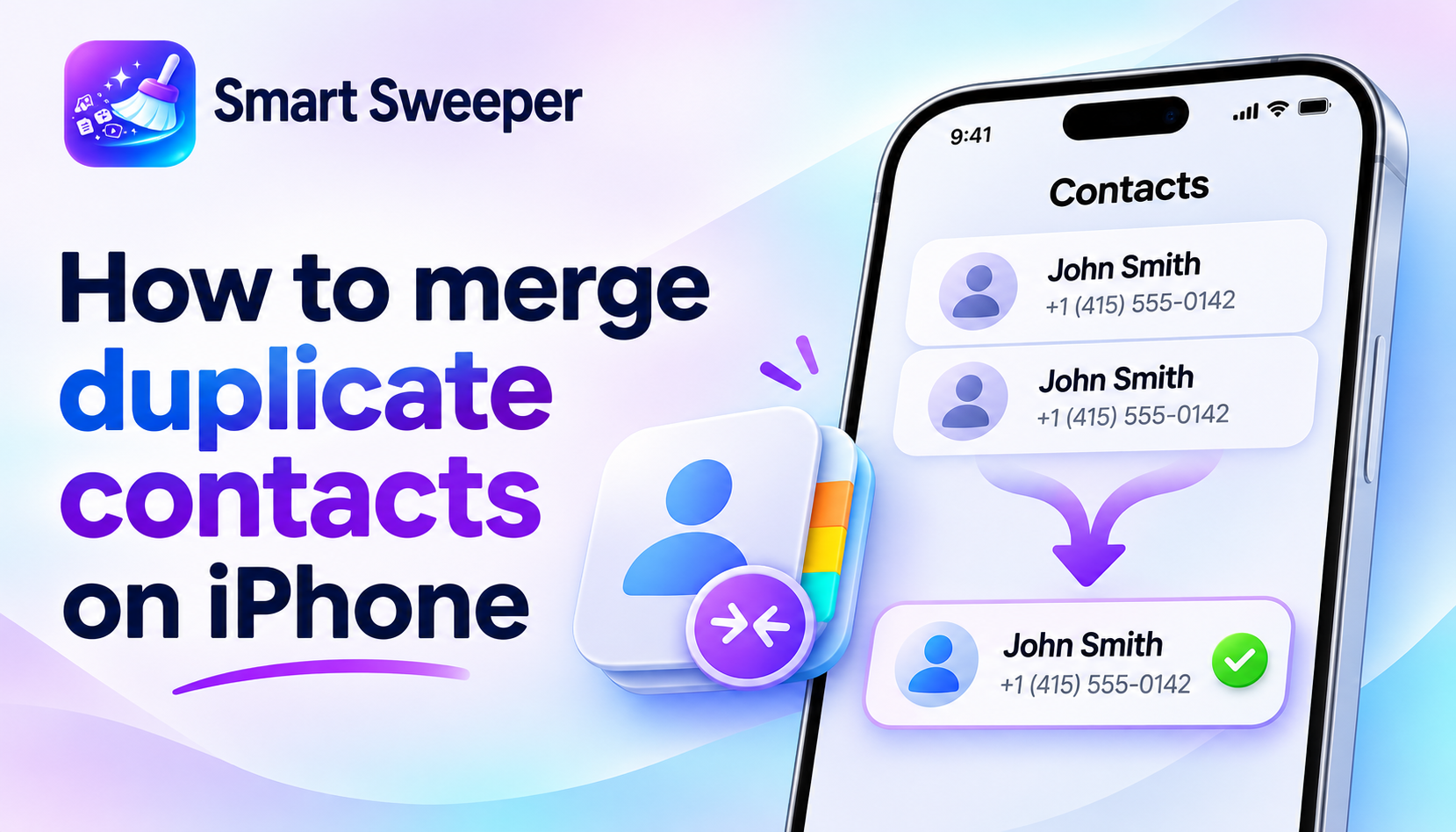
If the same person shows up two or three times in your address book, you can fix it in a couple of minutes with tools already on your iPhone. This guide covers how to merge duplicate contacts on iPhone, how to remove duplicate contacts when merging isn't the right fix, and why this won't solve a full-storage warning.
Find and merge duplicates in the Contacts app
On iOS 16 and later, the Contacts app (and the Contacts tab in the Phone app) shows a Duplicates Found banner at the top of your contact list when it spots entries that look like the same person.
- Open the Contacts app.
- Tap Duplicates Found at the top of the list. If you don't see it, iOS hasn't found any duplicates, or you are on an older version of iOS.
- Look at each group. Check that the names, numbers and emails belong to one person.
- Tap Merge on a group to combine it into a single card, or use Merge All if you have checked them and they are all correct.
The merged card keeps the details from every copy, so you don't lose a second phone number or an email address. If two people share a name, skip that group and leave them as they are.
Link contacts by hand
If the banner doesn't appear, or iOS missed a pair, you can join two cards yourself.
- Open one of the contacts and tap Edit.
- Scroll down and tap Link Contacts….
- Pick the other card and tap Link, then Done.
Linking shows both entries as one card in your list. Unlike a merge, the two original cards still exist underneath, which makes it easier to undo: open the card, tap Edit, and unlink it.
Remove duplicate contacts you don't need
Sometimes a duplicate is just an empty or outdated copy. To remove duplicate contacts one at a time, open the extra card, tap Edit, scroll to the bottom and tap Delete Contact. Check which copy has the most complete information first, and delete the other one.
Why you have duplicates in the first place
Most duplicates come from the same person being saved in more than one account, for example in iCloud and in a Google or Exchange account. They can also appear after importing a contact file or switching phones. If you keep seeing duplicates return, open Settings → Contacts → Accounts and check how many accounts are syncing contacts. Turning off contact syncing for an account you no longer use stops new copies from arriving.
Back up your contacts before you merge
Merging combines cards and deletes the extra ones, and there is no single undo button. Take a backup first:
- On a computer, sign in at iCloud.com and open Contacts.
- Select all your contacts, click the gear icon, and choose Export vCard.
- Keep that file somewhere safe. If a merge goes wrong, you can import it again.
If your contacts are not stored in iCloud, check the backup options of the account you use instead.
Will merging contacts free up storage?
Not by much. Contact cards are tiny compared with photos and videos, so deleting duplicates tidies your address book but won't clear a "Storage Almost Full" warning. The things that fill an iPhone are usually blurry shots, near-identical photos, old screenshots and large videos. Our guide to the iPhone storage cleaner approach walks through finding those.
Smart Sweeper, the app this site is about, is built for that part of the job. It suggests blurry photos, duplicates and old screenshots for removal, and you review every suggestion before anything is deleted. It does not scan or change your contacts. You can see how it works or join the waitlist to hear when it is on the App Store.
Frequently asked questions
The bottom line
The built-in Contacts app is the quickest way to merge duplicate contacts on iPhone. Back up first, review each group, and merge or link the ones that match. Just don't expect it to fix a full phone. For that, look at your photos and videos.
Smart Sweeper is coming soon to the App Store for iPhone. It suggests what to remove and nothing is deleted until you confirm it. What stays on your phone is on the privacy page.