Smart Sweeper
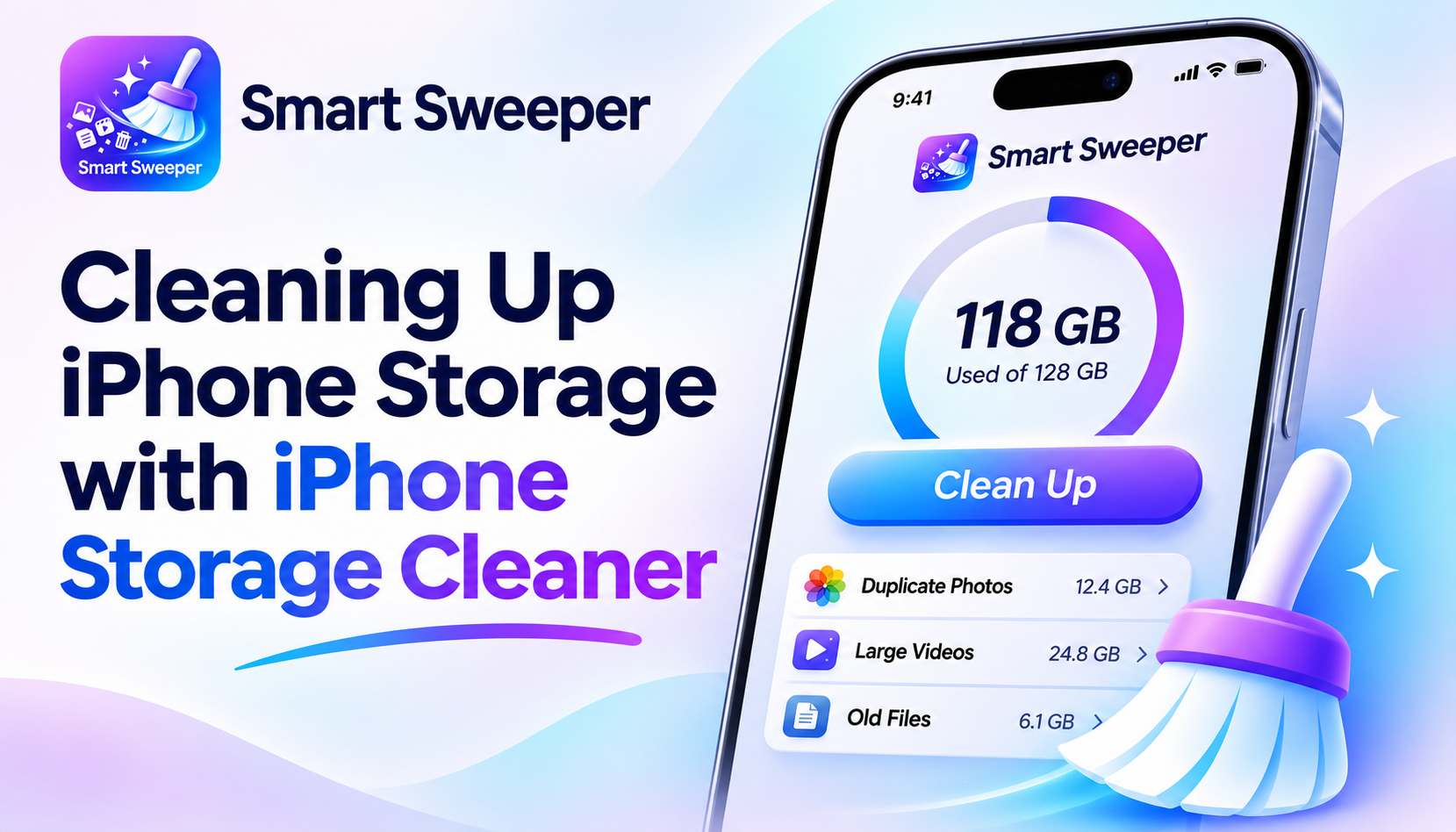
Cleaning Up iPhone Storage with iPhone Storage Cleaner
Date: 2026-11-13
Your iPhone says storage is full just when you want to take a picture. New photos and videos will not save, and the camera roll looks crowded with duplicate pictures, screenshots, blurry shots and old clips. You need cleaning up iPhone storage, but it is hard to tell which files are safe to delete and which ones matter. The phone does not always make it easy to see what is using space or to spot near-identical photos.
This page walks through the full cleanup workflow on the phone itself. It shows what the iPhone storage settings display, how to review duplicate and similar photos before anything is deleted, and how to clear screenshots, blurry photos and selfies. It also covers compressing large videos, merging duplicate contacts and removing old calendar events. The goal is to free space by removing only what you do not need.
What iPhone storage settings show vs the app scan
iPhone Storage settings show how much space is used and free, and they list which apps take up the most room. They do not find duplicate photos, blurry screenshots, or large videos, and they do not let you review items before they are deleted. Open Settings, then General, then iPhone Storage. You will see a color-coded bar at the top and a list of apps below it, sorted by size. Tapping an app shows its documents and data, but the screen does not look inside your photo library for copies or near-duplicates.
If your library is full of repeated shots, the built-in settings cannot tell you which ones are safe to remove. The Photos app lets you delete items one at a time or in a selection, but it does not scan for duplicate and similar photos across the whole library. You would have to spot the repeats yourself, which takes a long time when there are hundreds of images. A storage cleaner app scans the photo library on the phone for duplicate and similar photos, screenshots, blurry photos, Live Photos, selfies and large videos, and suggests what to remove.
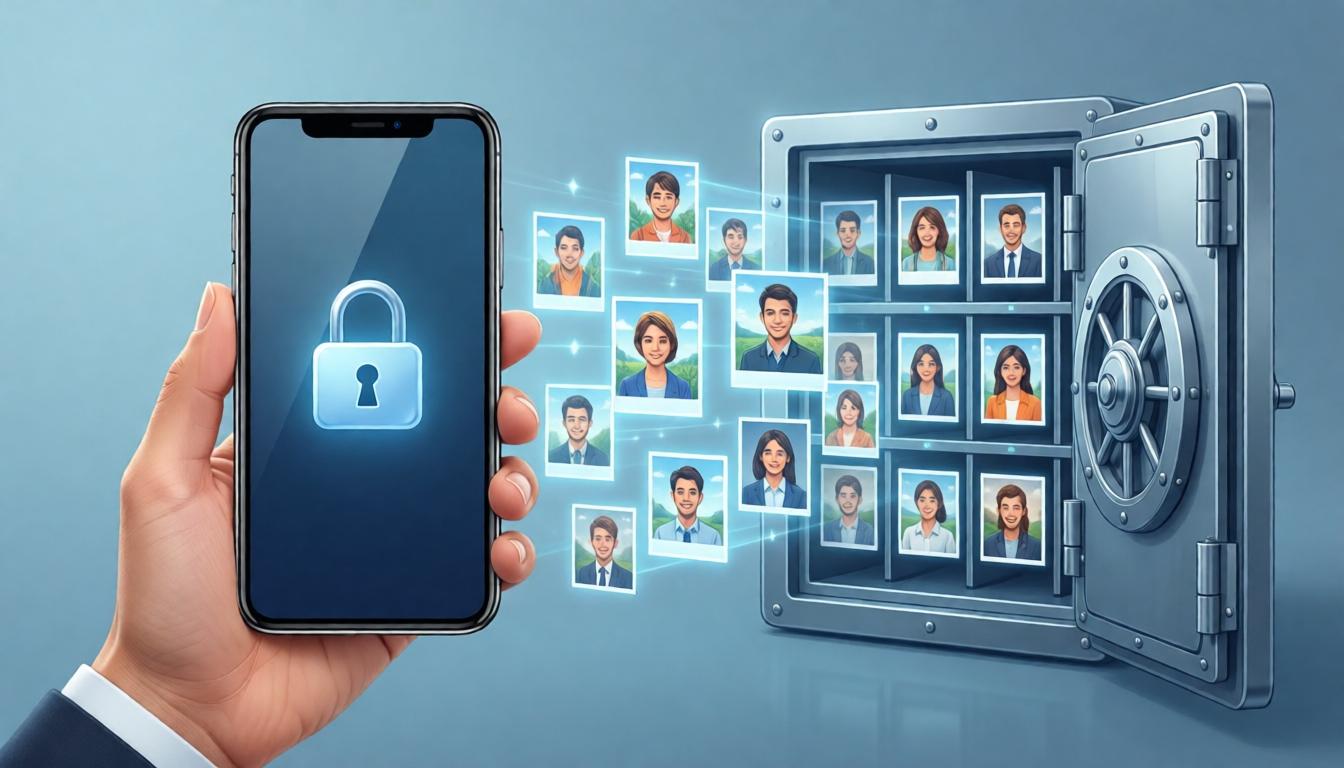
You review every suggestion before any photo or video is deleted. The scan runs on the iPhone, and photos, contacts and calendar data are not uploaded. When you are cleaning up a full library, this review step matters. Instead of guessing which photo to keep, you can look at each suggestion and decide. The app picks a best shot to keep from similar groups, but nothing disappears unless you approve it.
Review duplicate and similar photos before anything is deleted
The scan surfaces duplicate and similar photos and picks the best shot to keep as part of cleaning up your library, but nothing is deleted until you approve it.
You review every match and choose which photo to keep before any deletion happens.### Compare each group before you choose Duplicate and similar photos build up from burst shots, repeated downloads, edited versions, and screenshots of pictures already in your library. The scan groups them so you can see the matches side by side instead of hunting through months of pictures. In each group, the app suggests the best shot to keep, usually the clearest image with the best framing.
Look at the thumbnails, open the full version if you need more detail, and tap the photo you want to save. Then deselect the rest. Nothing disappears until you confirm the selection.### Confirm only what you want removed After you pick the keeper in every group, confirm to remove only the deselected copies.
Your chosen photos stay in the library exactly as they were. If you change your mind, deleted photos move to the Recently Deleted album in the iOS Photos app. They remain there for 30 days unless you remove them earlier, so you can recover photos you deleted by mistake. Because the scan runs on the iPhone and you approve every choice, you decide exactly what leaves your library and what stays.
Clear screenshots, blurry photos, Live Photos and selfies from the library
The scan groups screenshots, blurry photos, Live Photos and selfies into separate clutter groups so you can review and delete them. Instead of scrolling through hundreds of images one by one, you see each category together and decide what stays.
Screenshots often pile up after you save receipts, tickets, directions or information you no longer need. Blurry photos include accidental shots, out-of-focus pictures and images that did not come out right. Live Photos take more room than still images because they capture a few seconds of motion before and after the picture. Selfies can appear in near-duplicate sets when you took several tries to get the right expression, light or angle. You might also have screenshots from conversations or websites that are no longer relevant.
Open the clutter group you want to check. The scan shows each image with a suggestion about whether to keep or remove it. Keep the photos you want, select the ones you do not need, and confirm the deletion. Nothing is removed from your library until you approve it, so you stay in control of every choice. This review step applies to every clutter category, not just one type of image.
Because the scan runs on the iPhone, your photos stay on the device. The suggestions are only recommendations; you make the final decision for each screenshot, blurry photo, Live Photo and selfie. No photo leaves the phone during this process.
If your goal is cleaning up space in your photo library, this category-by-category review lets you reclaim room without guessing which files are safe to delete.
Compress large videos and clean up contacts and calendar events
Large videos, duplicate contacts and old calendar events take up space you can reclaim without deleting photos. When storage is full, these are often the largest culprits besides photos. iPhone Storage Cleaner scans for these items and lets you review every suggestion before changes are made.### Compress large videosThe app compresses large videos on the iPhone with HEVC and saves a smaller copy on the device. The original video stays in your library unless you choose to remove it after reviewing the result.
Because the smaller copy replaces the bulk of the file, you keep the footage while freeing storage. The work happens on the iPhone, and the video is not uploaded. The first video compression is free; after that you need a subscription.### Clean up duplicate contactsIt finds duplicate and incomplete contacts in your address book. You can merge duplicates or remove entries you no longer need. It also flags contacts with missing details so you can decide whether to keep or delete them.
A vCard backup is created before contacts are merged or deleted, so you can restore a contact if something goes wrong. You review each suggested match before it is merged or removed.### Clear old calendar eventsOld events can accumulate over years and quietly consume space. The app clears out old calendar events that no longer matter. It shows you which events it found and waits for your approval before deleting events. This frees space tied to outdated appointments while leaving your upcoming calendar untouched.
Frequently Asked Questions
The Bottom Line
A full iPhone can stop a parent from taking new photos, and it is hard to know which pictures and videos are safe to remove. Cleaning up works best when you check duplicate and similar photos, screenshots, blurry shots, Live Photos and selfies one group at a time. Compress large videos into smaller copies, merge duplicate contacts with a backup, and clear old calendar events only after you approve each suggestion. Photos, contacts and calendar data stay on the iPhone, and nothing is deleted without your review. iPhone Storage Cleaner scans the photo library and suggests what to remove.
Smart Sweeper is coming soon to the App Store for iPhone. It suggests what to remove and nothing is deleted until you confirm it. What stays on your phone is on the privacy page.