Smart Sweeper
Battery Draining Fast iPhone: How to Make the Charge Last Longer
Date: 2026-11-14
Your iPhone dies before the day ends. You leave the house with a full charge, but by late afternoon the percentage is falling fast and the screen goes dark when you still need it. When your battery is draining fast on iPhone, a dead phone means missed calls, missed trains, and no way to check maps or messages while you are out. You do not need to replace the phone to fix it.
This page walks through what to check and what to change so the charge lasts longer. You will see how to read the current charge level, charging state, and estimated time to full. It also covers simple tips that help the battery hold up through a full day, plus when to run checks yourself instead of letting anything run in the background and drain the battery faster.
Check Battery Care for charge level and time to full
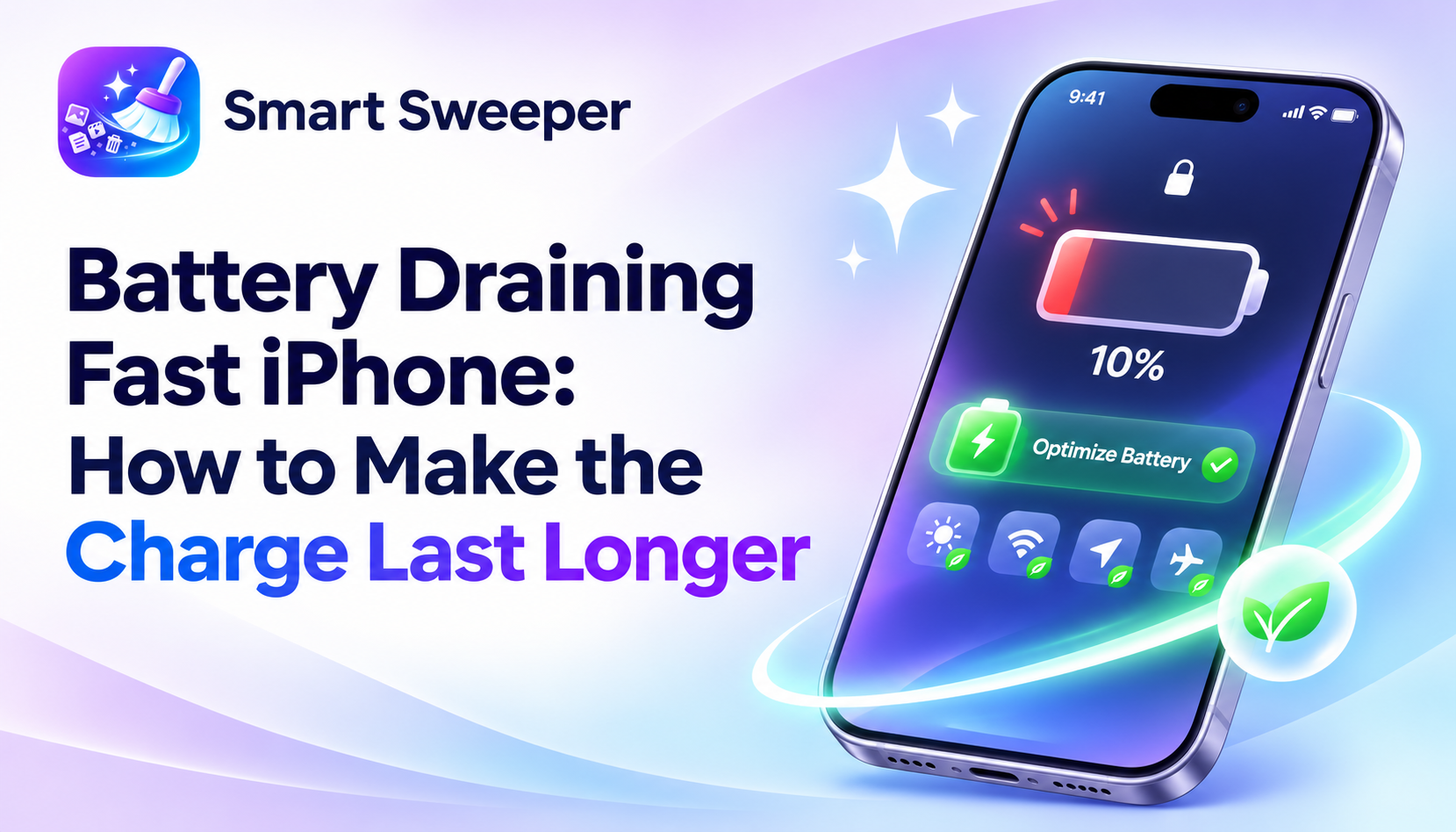
Battery Care shows your current charge level, charging state and estimated time to full right on the iPhone. You can see exactly how much charge is left and whether the phone is charging before the battery dies.| |The charge level is the percentage of battery remaining. The charging state tells you if the phone is drawing power from a cable or a wireless charger right now. The estimated time to full shows how much longer the phone needs to reach full.
Together, these three details tell you whether the battery is holding steady, going up, or dropping while you use the device.| |Before you leave home, check the charge level and the estimated time to full. If the number is low and the time to full is long, you know you will need to top up during the day. While you are out, glance at the charging state to confirm the phone is actually drawing power when you plug it in.
A cable can look connected without delivering any charge, and the display makes that easy to catch.| |For a commuter whose iPhone battery drains fast between morning and evening, this view is practical rather than theoretical. You can decide whether to plug in for a quick top-up now or wait until you reach your destination.
If the percentage drops faster than usual while you are on the move, you can look for a charger before the screen goes dark instead of being surprised by a dead phone.| |The information appears on the iPhone screen. Battery Care reads what the device reports and shows it on screen; it does not read battery health, capacity or cycle count, and it does not change battery performance.
You use the numbers to decide when to plug in and how long to leave the phone on the charger.| |Seeing the numbers is only the first step. The next section explains the tips Battery Care suggests so the charge lasts longer.| |
Apply Battery Care tips so the charge lasts longer
Battery Care tips include stopping at 80 percent, using Charge Limit on iPhone 15 and later, and keeping the iPhone cool. These charging habits help the current charge last longer without changing battery performance.### Stop at 80 percentCharge the phone up to about 80 percent, then unplug it. Keeping the battery out of the top 20 percent reduces stress during daily use, so the charge you have is available when you need it.
This works well for a morning top-up before a commute.### Use Charge Limit on iPhone 15 and laterOn iPhone 15 and later, turn on Charge Limit in the battery settings. The phone stops charging at the limit you choose instead of going all the way to 100 percent every time. This is useful when the phone stays plugged in for hours, such as at a desk or by the bed.### Keep the iPhone coolHeat makes the battery work harder during charging and normal use.
Avoid leaving the phone in direct sunlight, on a car dashboard, or under a pillow while it charges. Take off a thick case if the phone feels warm. A cooler iPhone keeps more charge available through the day.### Match the tip to your dayIf you are going out soon, stop at 80 percent and unplug. If the phone will sit on a charger all night, use Charge Limit so it does not sit at 100 percent for hours.
If you are outdoors in hot weather, keep the phone in a bag or shade and remove any thick case while charging.### Check Battery Care before you leaveLook at the charge level, charging state and estimated time to full before you head out. If the phone is not charging, plug it in and pick one of the tips above. If it is charging, set a limit or stop at 80 percent so you do not overfill the battery for a short trip.These small choices add up.
They will not repair an old battery, but they can help the charge you have last through a full day.{
Run scans only when you choose, not in the background
Scanning and cleaning run on the iPhone only when you start them, so nothing works unseen in the background. If your battery draining fast iPhone is leaving you with a dead phone by evening, it helps to know which apps are working without asking.
in the background. iPhone Storage Cleaner scans the photo library, contacts and calendar only after you open the app and choose a scan. It can check for duplicate and similar photos, blurry pictures, screenshots, Live Photos, selfies and large videos, then present suggestions. You review every suggestion before anything is deleted. It can also find duplicate and incomplete contacts to merge or remove, and old calendar events to clear, but none of that happens on its own.
You can run one scan at a time, such as a duplicate photo scan or a large video scan, and stop when you want. The app works only while you are reviewing its suggestions, so it will not continue using power after you close it. Some phone activity runs in the background even when the screen is off.
Because this app scans only on your command, it will not wake the processor to look through your library while you are commuting, in a meeting or with the phone locked in your pocket. Cleaning will not add to battery drain while you try to make the charge last through the day. Nothing is uploaded. Photos, contacts and calendar data stay on the device, so the app does not send your library over the network while you are away from a charger.
When you finish reviewing the results, you choose what to remove or keep, and the change happens locally on the phone. Video compression is also under your control. Compress a large video only when you start it, and the app saves a smaller HEVC copy on the iPhone. The original video remains unless you choose to remove it. Open the home screen widget to see used and free storage, then start a scan when you have time to review the results.
Everything stays on your iPhone, and nothing runs without your permission.
Frequently Asked Questions
The Bottom Line
If your iPhone battery is draining fast and the phone dies before the day ends, check the charge level, charging state, and estimated time to full. Battery Care tips such as stopping at 80 percent, using Charge Limit on iPhone 15 and later, and keeping the phone cool help the current charge last longer. Running scans only when you choose keeps the app from working in the background. iPhone Storage Cleaner frees up iPhone storage and shows battery details with Battery Care.
Smart Sweeper is coming soon to the App Store for iPhone. It suggests what to remove and nothing is deleted until you confirm it. What stays on your phone is on the privacy page.