Smart Sweeper
How to Fix Phone Battery Draining Faster on iPhone
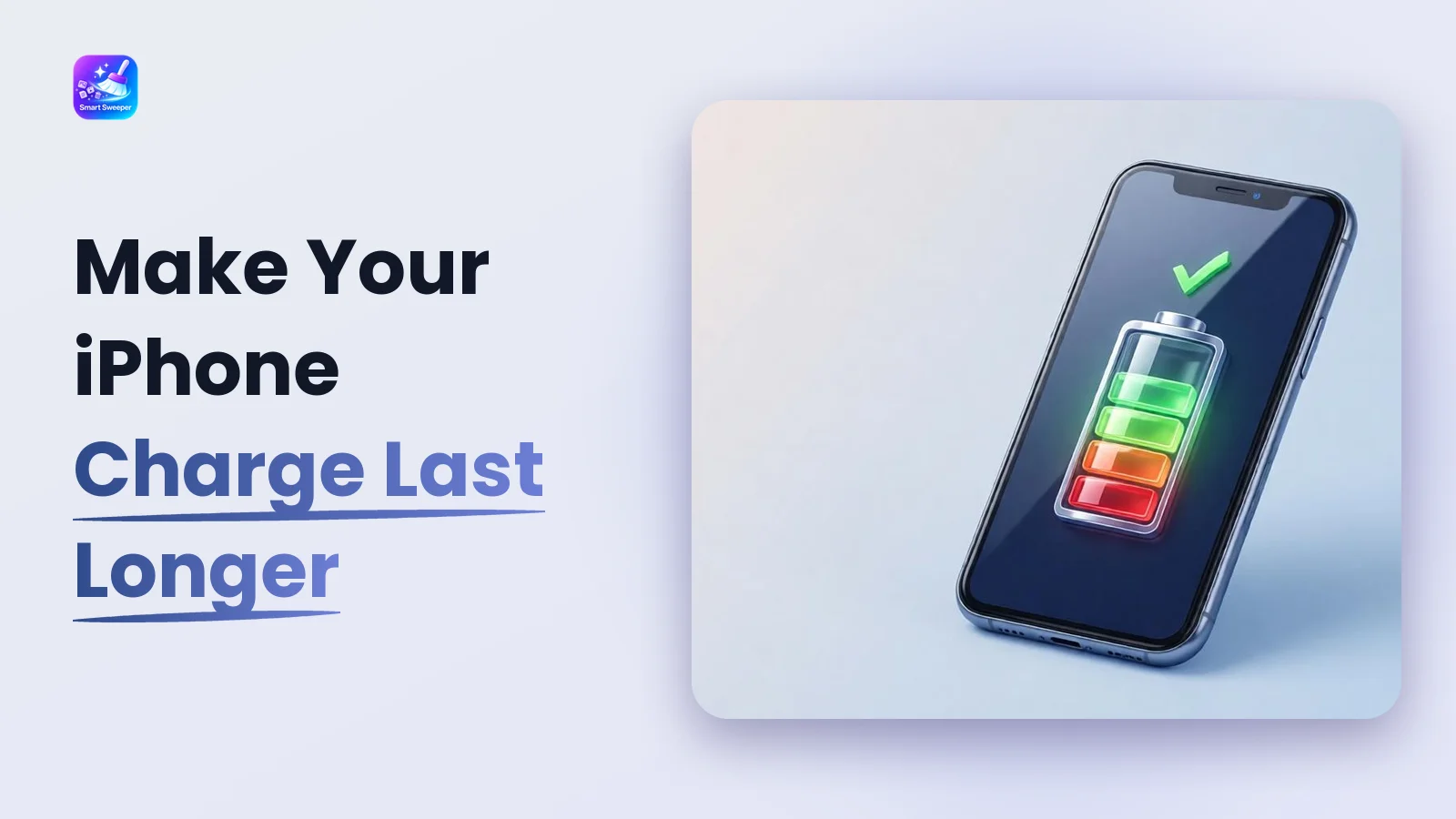
Your iPhone charge disappears before the day ends, and you are dealing with phone battery draining faster than it should. The percentage drops even when you are not using the phone, and you reach for the charger more often than you want. A full day should not end with a search for an outlet.
The steps below help you check which apps are using the most charge, turn on power-saving settings, and change how and where you charge the iPhone. You will also learn what to try if the battery still drains fast, and how to check that the charge is lasting longer. These are settings and habits you can adjust, and they work on the iPhone you already have.
The goal is to make the charge last through the day without changing how you use the phone.
Check Which Apps Are Draining the Battery Now
Open Settings, tap Battery, and look at the apps using the most charge over the last 24 hours and 10 days. The list sorts apps by charge used, so you see which ones are responsible before changing any settings. Start with the apps at the top. If an app you rarely open shows high usage, it may run in the background. Close it or check its settings later. For daily-use apps, note how much they drain so you can compare after each fix. Seeing the biggest drains first keeps you from changing settings that will not help. Battery Care can show charge level, charging state and estimated time to full as a checkpoint while you work through the list.
Turn On Low Power Mode and Lower Screen Brightness
Turn on Low Power Mode in Settings or Control Center, and reduce brightness until the screen is comfortable but not bright. These settings slow how quickly the charge drops during normal use.
- Open Settings, tap Battery, and turn on Low Power Mode. You can also open Control Center and tap the Low Power Mode icon. The battery icon turns yellow while the mode is active.
- Open Settings, tap Display & Brightness, and drag the brightness slider down until the screen is easy to read but not bright. You can also drag the brightness slider in Control Center.
- Stay in Settings > Display & Brightness and set Auto-Lock to 30 seconds or 1 minute.
The display turns off sooner when you are not using the phone. Low Power Mode limits background app refresh, mail fetch, automatic downloads and some visual effects, so the phone uses less power while you are not actively using it. A dimmer screen reduces one of the largest power draws on the display. Together they give you more hours of use before the next charge. Battery Care surfaces charging tips that help with the same issue: stop charging around 80 percent, use Charge Limit on iPhone 15 and later, and keep the phone cool while it charges. Those habits protect daily charge between top-ups.
Change How and Where You Charge the iPhone
Plug in before the battery gets very low, avoid power-heavy apps while charging, and keep the phone out of heat and direct sun. Charging habits and temperature affect how fast the battery drains.
Plug in right away when the level gets low instead of waiting until it is nearly empty.
Avoid games, video calls, and navigation while the phone is plugged in. These tasks create heat and draw power at the same time.
Keep the iPhone out of direct sun, off a car dashboard, and away from heaters.
Take off a thick case while charging if the phone feels warm.
On iPhone 15 and later, set Charge Limit to 80 percent in Battery settings. This stops charging at that level.
Stop charging at 80 percent to reduce time spent at full charge. Warmth while charging makes the battery work harder, so a cool spot matters more than a fast top-up. If the phone feels hot, unplug it and let it cool before charging again.
If the Battery Still Drains Fast, Try This
Restart the iPhone, check Battery settings for a stuck app, and install any iOS update. A stuck process or warm environment can make drain look worse than it is.
Turn the iPhone off and back on. This clears stuck background processes that keep the screen or radio awake.
If the iPhone feels warm, move it out of direct sunlight or away from the charger and let it cool.
Open Settings and go to Battery. Look for an app with high background activity over the last day. If one stands out, open that app and close it.
Install any available iOS update. Go to Settings > General > Software Update and download the update if one is waiting. Updates often fix bugs that cause abnormal drain.
Battery Care shows the charge level and time to full, so you can tell whether the charge is holding after these changes. If the percentage still drops quickly, move on to checking the charge over a full day.
Check That the Charge Is Lasting Longer
Compare the time to full and the charge level before a full day of normal use, then check them again at the end of that day. Battery Care shows the charge level, whether it is charging, and the estimated time to full. If the time to full stays about the same and the charge ends the day higher than before, the steps worked. If the percentage is much lower or the time to full is much longer, the battery is still draining too fast and you should repeat the earlier fixes.
Start the morning by noting the charge level and time to full in Battery Care. Use the iPhone as usual through the day, then look at the percentage again before your next charge. For a precise comparison, take a screenshot of the Battery Care screen in the morning and another at night. Low Power Mode and lower brightness should show up here first, because they slow how quickly the percentage drops.
How iPhone Storage Cleaner helps with making the iPhone battery last longer
Battery Care in iPhone Storage Cleaner shows the current percentage, whether the iPhone is charging, and time to full, with tips for longer battery life. You can see exactly how much charge is left and follow the tips without guessing. Open the app and open Battery Care. It shows the current percentage, whether the iPhone is charging, and time to full. The tips include stopping at 80 percent, using Charge Limit on iPhone 15 and later, and keeping the phone cool.
You apply these in the iPhone's settings. The app does not read battery details or change battery performance. Use Battery Care as a daily checkpoint after you change charging habits or screen settings. If time to full moves closer to your usual routine, the adjustments are working. For a full overview of what the app does, see iPhone Storage Cleaner.
The Bottom Line
You can slow phone battery draining faster by checking which apps use the most charge, turning on Low Power Mode, lowering screen brightness, and charging in a cool place. Restart the iPhone and install iOS updates if the drain continues. Compare the morning percentage and evening readings to confirm the charge is lasting longer. Battery Care displays the current charge and how long until the next charge, so you can follow battery tips in iPhone settings. iPhone Storage Cleaner shows your charge and time remaining, with tips for longer battery life. Photos, contacts and calendar data are not uploaded. Get iPhone Storage Cleaner
Smart Sweeper is coming soon to the App Store for iPhone. It suggests what to remove and nothing is deleted until you confirm it. What stays on your phone is on the privacy page.