Smart Sweeper
How to Hide Pictures on Your iPhone Without Deleting Them
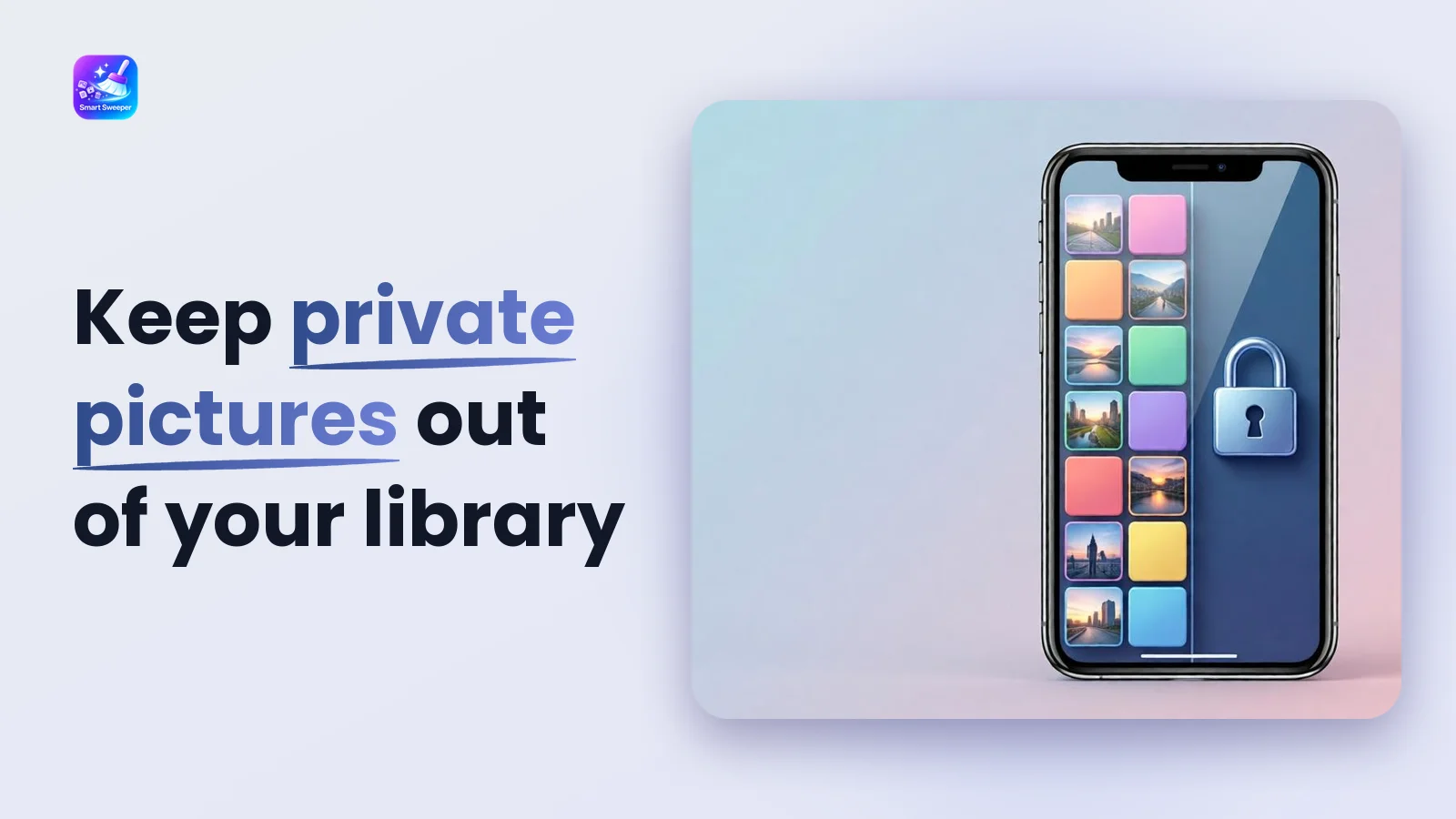
Private photos on your iPhone do not stay private once they are in your main library. Every picture you save appears in the main grid, and many of them also show up on your home screen widgets. Anyone who opens your Photos app can scroll through them. If you want to hide pictures on iPhone so they are not visible in that main grid, moving them out of the library is the only reliable way.
This guide shows how to move private pictures into a separate vault that requires a passcode to open, so they stop appearing in your library. It explains what the iPhone Hidden album does and does not do, what to check before you start, what to do if a photo will not move, and how to confirm the pictures are really gone from your main library. The steps work on iPhone only and do not require a computer.
Before You Start: Check Your Photos and iOS Version
Make sure the pictures you want to hide are saved in your iPhone photo library before you start. Your iPhone also needs to be able to install a vault app from the App Store.
Having the pictures in the library lets the vault import them. The move happens on the device, so your photos stay on your iPhone and are not uploaded. Read the privacy policy to see how the app handles data.
This is not a hide folder in iPhone. A vault stores the pictures separately from your main library, and opening it requires Face ID.
Check your iOS version in Settings so you know the app will run on your phone. If your photos are not in the library yet, save them there first.
Hide Pictures in a Passcode-Protected Vault
Import your private pictures into a vault protected by Face ID, then remove them from the main library so they no longer appear there. A Face ID protected vault stores pictures locally on the iPhone and keeps them out of the main photo grid. First you bring pictures into the vault, then you delete the originals from the library. This keeps the pictures on your phone but out of the everyday grid.
- Open the vault and tap Import or Add Photos.
- Choose the private pictures from your iPhone photo library.
- Confirm the import so the vault saves them separately.
- Open the Photos app and delete the originals from your library.
- Open the Recently Deleted album and delete them again so they do not remain on the phone.
If the vault asks you to set up Face ID, follow the prompts before you import photos. This locks the vault behind your face or passcode. Do not import the same picture twice unless you mean to keep two copies in the vault. The vault opens with Face ID each time. Pictures inside do not show up in widgets or the main Photos grid. Only import pictures you want to keep separate.
The vault copy becomes the only one left after you delete the originals. Check your storage after you finish. The vault uses space on the iPhone for the copies you import, so deleting the originals is what frees up room in the main library. Because the vault is on the iPhone, your photos are not uploaded anywhere. Read the privacy policy for details on how the app handles your data.
If a Photo Won't Move or the Vault Won't Open
Check that Face ID is set up on your iPhone and that you removed the photo from the library after importing it into the vault. A picture stays visible if it was imported but not deleted from the library, or if Face ID is not configured. If the photo still appears in your main library, open the Photos app, select the picture, and delete it.
Then open the Recently Deleted album and remove it there too, or it will remain visible for up to 30 days. If the vault will not open, check Face ID in Settings and confirm it is enabled. Set up Face ID if you have not already, then try opening the vault again. The vault stores photos separately and requires Face ID to open, so once the original is gone from the library and Face ID works, your pictures stay hidden from view.
Check That the Pictures Are Gone From Your Main Library
Open the Photos app and scroll through the main library. Look at the grid and any home screen widgets that show recent pictures. The private pictures should no longer appear there.
Photos stored only in the vault do not appear in the main library, in Photos search results, or in home screen widgets. If a picture still appears, open it and make sure it is not still saved in your main library. Move it to the vault again if needed, then check the library once more.
Since the vault contents stay on the iPhone, they are not uploaded to any cloud service. You can open the vault with Face ID whenever you need to view the pictures again.
How iPhone Storage Cleaner helps with hiding private photos
iPhone Storage Cleaner keeps private photos and videos in a Face ID protected encrypted vault on the iPhone so they don't appear in your main library. The vault stores pictures locally on the phone, locks them behind Face ID, and never uploads them. Vaulted pictures do not appear in the main Photos grid, search results, or widgets.
Open the app and pick the photos you want to move. The app scans your library and shows you each suggestion before anything is moved or deleted. Choose the pictures, move them into the vault, and remove the originals from the main library if you no longer want them there. Because the vault is separate from the library, hidden pictures don't appear in the grid but remain available when you open the vault with Face ID.
This is one way to hide pictures on an iPhone without relying on the Hidden album alone. If you need help setting up the vault or moving photos, the support page walks through the steps. iPhone Storage Cleaner support
The Bottom Line
The problem is that every photo in your iPhone library appears in the main grid, widgets, and search results. Moving images into a separate, Face ID-protected vault keeps them out of sight, so they no longer appear in the main grid. Open your vault and your main library to confirm the pictures no longer show up, then check your Home Screen widgets too. This is how you hide pictures on an iPhone by moving them into a separate vault. iPhone Storage Cleaner keeps private photos and videos in a Face ID protected encrypted vault on the iPhone, separate from the main library.
Smart Sweeper is coming soon to the App Store for iPhone. It suggests what to remove and nothing is deleted until you confirm it. What stays on your phone is on the privacy page.